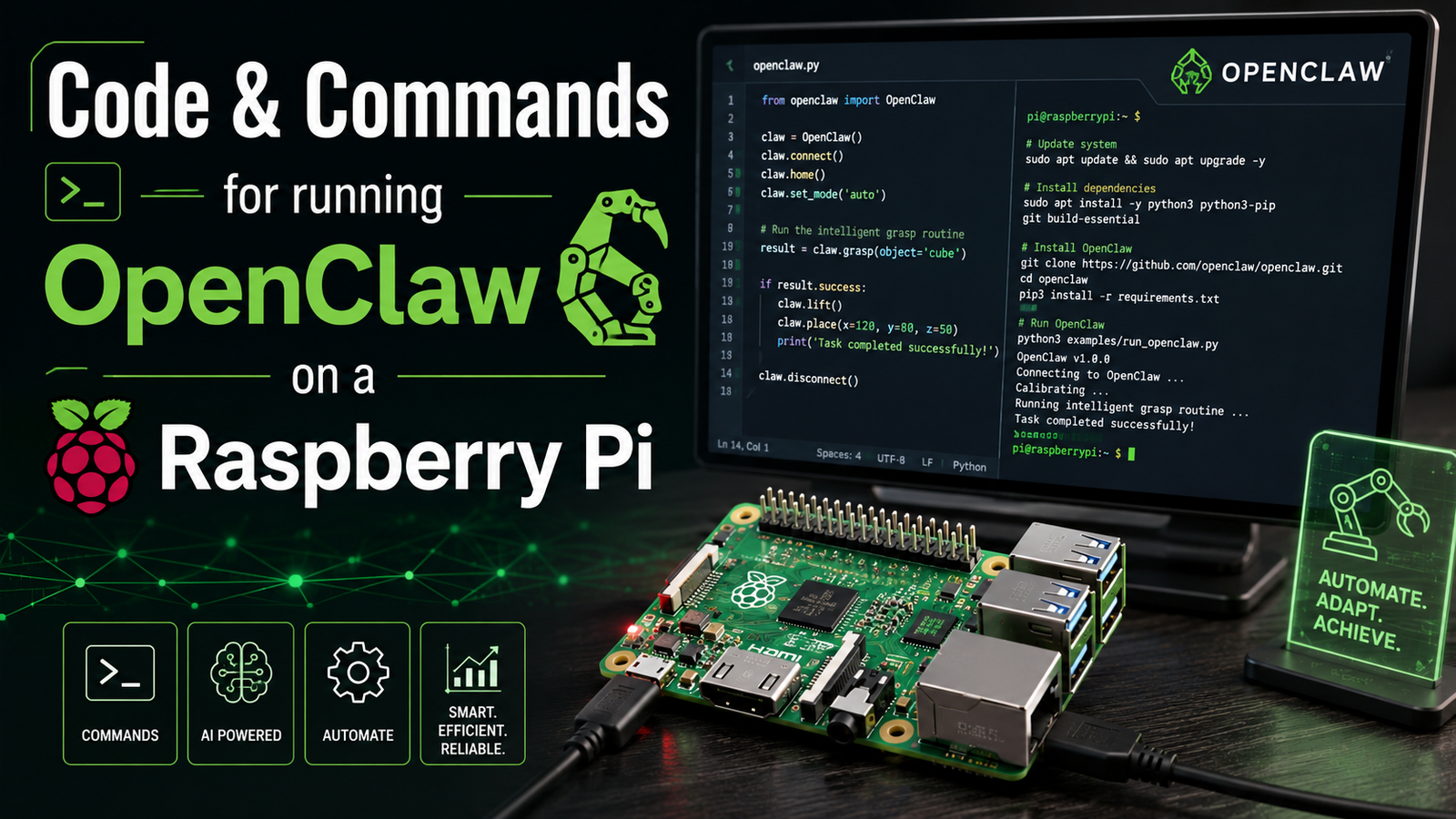
The Hardware and the Operating System
I used a Raspberry Pi 400 (which contains a Raspberry Pi 4). The current generation is the Raspberry Pi 5, but the 400 is what I had available.
Links to hardware:
Raspberry Pi 4: https://amzn.to/43Kvy4g
Raspberry Pi 5: https://amzn.to/3TkoTHF
Raspberry Pi Mouse and Keyboard: https://amzn.to/3SMj5GX
Raspberry Pi Power Supply: https://amzn.to/4jOFmio
SD Card: https://amzn.to/43Xq3h9
SD Card with OS pre installed: https://amzn.to/43ZulEQ
I installed Raspberry Pi OS following the official instructions on the Raspberry Pi website. That part was straightforward. The Raspberry Pi website includes clear directions.
I recommend you download the Raspberry Pi Imager from this page: https://www.raspberrypi.com/software/
Connect an Micro SD card to your computer and then run the imager program and follow the directions. When done remove the card from your computer and put it in the Raspberry Pi. Power on the Pi and just follow the setup instructions. After you have WiFi setup go ahead and install OpenClaw.
Openclaw Installation
Once the Pi was booted and connected to the internet, I ran the install command found on the OpenClaw website:
curl -fsSL https://openclaw.ai/install.sh | bash
It ran for a while and completed without issues.
Initial Setup
During setup, OpenClaw prompts you to choose a model. I went with Google’s Gemini models, mainly because Google offers a generous free trial (at the time of writing, $300 in API credits for cloud services). Gemini 3 Pro is also a strong model.
At one point, OpenClaw asked how I wanted it to handle memory. After some research, I selected:
-
session-memory -
boot-md
This combination is generally recommended because it gives a good balance of contextual awareness and proactive behavior without unnecessarily increasing API costs.
There were additional options that I left at defaults for now.
Connecting via Telegram
To interact with OpenClaw remotely, I chose Telegram, since it seemed to be the fastest and simplest method. NOTE: you do not need to ever use this. It is just a convenience.
Here’s what that process looked like:
-
Created a Telegram account.
-
Messaged BotFather (yes, that’s actually what it’s called).
-
Created a new bot.
-
Received an API key.
-
Copied that API key into the OpenClaw setup on the Raspberry Pi.
At first I wasn’t sure why Telegram was necessary, but it provides a convenient remote interface. You can interact with your agent from your phone without being physically at the Pi.
Adding Skills (Important)
By default, OpenClaw has limited abilities. You’ll want to add APIs to extend what it can do.
A few important ones:
-
Brave Search API – Allows it to search the web.
-
Firecrawl – Enables scraping and structured extraction from websites.
-
Gemini (or other AI API) – Provides the reasoning engine.
Without Brave Search, for example, it can’t meaningfully browse the web.
The “Soul” File
When you first interact with OpenClaw, it asks you to define its identity. This is stored in a file called soul.md.
This file defines how it behaves: its tone, personality, constraints, and priorities. For example:
-
“You will be concise.”
-
“You will be polite.”
-
“You will ask for clarification when needed.”
It’s an interesting concept. You’re essentially shaping the behavioral layer that sits on top of the model.
Multiple Agents (Very Useful)
One feature I found particularly useful is the ability to define multiple agents using different models.
This can save money.
For example:
-
A “smart” agent that uses a more powerful (and expensive) model.
-
A “fast” agent that uses a lighter, cheaper model for routine tasks.
Here’s a simplified example of what that configuration looks like inside openclaw.json:
"list": [
  {
    "id": "smart",
    "default": true,
    "name": "Smart",
    "model": {
      "primary": "google/gemini-3-pro",
      "fallbacks": [
        "google/gemini-2.5-flash"
      ]
    }
  },
  {
    "id": "fast",
    "name": "Fast",
    "model": {
      "primary": "google/gemini-2.5-flash",
      "fallbacks": [
        "google/gemini-2.5-flash-lite"
      ]
    }
  }
]
You can then switch between them depending on the task. You only need to give a short command in the chat:
/agent smart
Useful Commands
Here are some commands I’ve found helpful:
-
openclaw configure
Update settings interactively. -
nano ~/.openclaw/openclaw.json
Manually edit configuration (only if you know what you’re doing). -
openclaw gateway restart
Restart the session. -
openclaw gateway stop
Stop the session. -
openclaw gateway start
Start the session. -
openclaw models status
View your configured models and fallbacks. -
openclaw tui
Opens the terminal UI and enables the browser interface athttp://localhost:18789
Inside the chat interface, there are also slash commands such as:
-
/exit -
/session new -
/agent smart