
Cheat Sheet
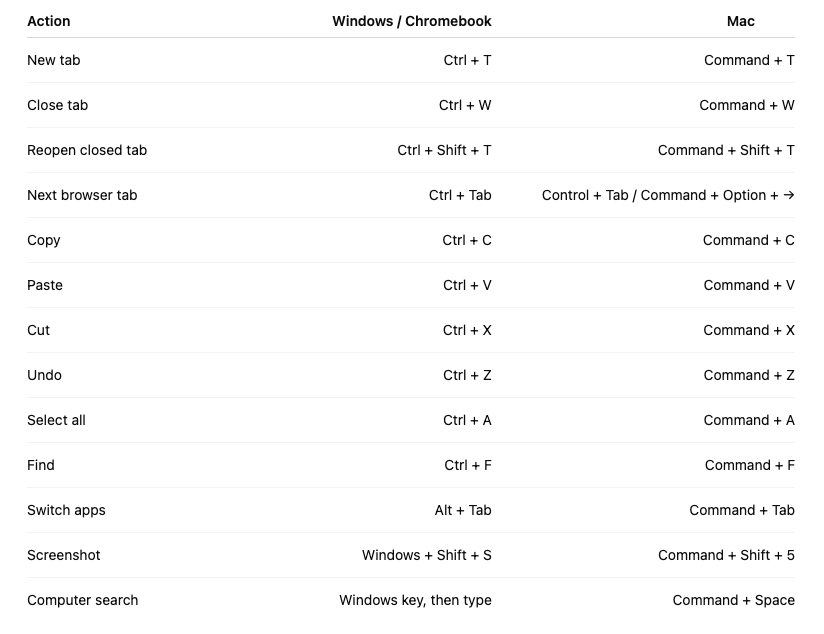
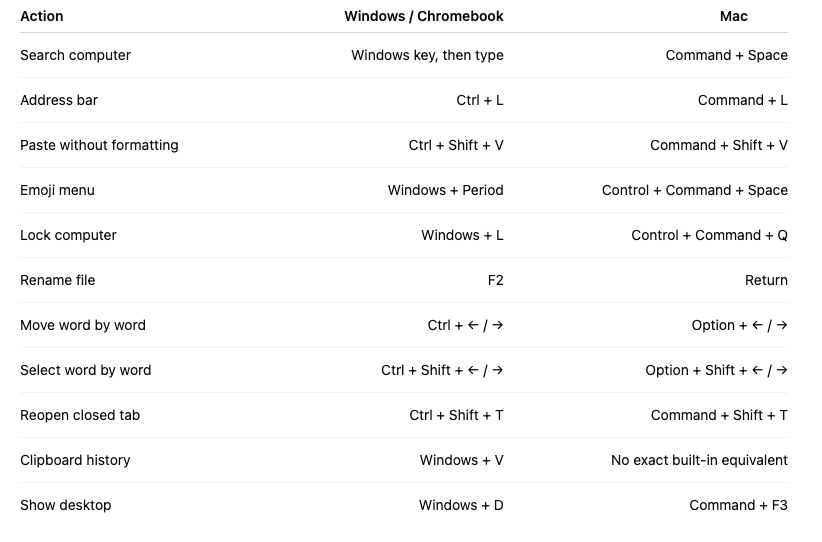
Details
-
Open a new browser tab
Let’s start with one of the most useful shortcuts: opening a new tab.
On Windows or Chromebook, press Ctrl + T.
On Mac, press Command + T.
This instantly opens a new tab in Chrome, Edge, Safari, or most modern browsers. I use this constantly when I’m researching something, opening Gmail, checking Google Drive, or jumping to a new website. -
Close the current tab
Once you know how to open a tab, you should also know how to close one.
Press Ctrl + W on Windows or Chromebook.
Press Command + W on Mac.
This closes the tab you’re currently using. It’s much faster than trying to move your mouse up to that tiny little X. -
Reopen the tab you accidentally closed
This one feels like magic the first time you use it.
Press Ctrl + Shift + T on Windows or Chromebook.
Press Command + Shift + T on Mac.
This reopens the last tab you closed. So if you accidentally close a website, a Google Doc, or something you were reading, don’t panic. Just use this shortcut and bring it right back. Chrome’s official keyboard shortcut page lists this as the shortcut for reopening previously closed tabs. -
Switch between browser tabs
If you have a bunch of tabs open, you don’t need to click back and forth with your mouse.
Press Ctrl + Tab to move to the next tab on Windows
On Mac, you can usually use Control + Tab.
You can also go backward with Ctrl + Shift + Tab on Windows or Chromebook, or Command + Option + Left Arrow in Chrome on Mac. This is great when you’re comparing two pages or moving between email, a document, and a website. -
Copy, paste, and cut
This is technically three shortcuts, but they belong together.
Copy is Ctrl + C or Command + C.
Paste is Ctrl + V or Command + V.
Cut is Ctrl + X or Command + X.
6. Undo
This might be the most comforting shortcut ever created.
Press Ctrl + Z on Windows or Chromebook.
Press Command + Z on Mac.
If you delete something, type the wrong thing, move something by mistake, or mess up formatting, Undo can usually save you. It works in documents, spreadsheets, browsers, image editors, video editors, and a ton of other apps.
7. Select everything
This one is great when you want to quickly replace a full line, paragraph, document, or search box.
Press Ctrl + A on Windows or Chromebook.
Press Command + A on Mac.
For example, if you’re in the address bar, a Google Doc, or a text box, this selects everything in that area. Then you can copy it, delete it, or replace it.
8. Find something on a page
This is one of my favorites, especially when reading long websites, PDFs, or documents.
Press Ctrl + F on Windows or Chromebook.
Press Command + F on Mac.
Then type the word or phrase you’re looking for. Your computer will jump right to it. This is really useful for students doing research or anyone trying to find one specific detail without reading an entire page.
9. Switch between open apps
Instead of clicking around your dock or taskbar, you can jump between open apps.
On Windows, press Alt + Tab.
On Mac, press Command + Tab.
Hold the first key down and tap the second key to move through your open apps. This is great when you’re switching between Chrome, Word, Google Docs, email, or your video editor. Microsoft lists Alt + Tab as the shortcut for cycling through open windows. (Microsoft Support)
10. Take a screenshot or screen recording
Screenshots are useful for tutorials, tech support, school assignments, or saving something quickly.
On Windows, press Windows + Shift + S to open the snipping tool and select part of your screen. Microsoft lists this as the shortcut for selecting part of the screen for a screenshot. (Microsoft Support)
On Mac, press Command + Shift + 5 to open the screenshot and screen recording tools. Apple lists this as the shortcut for opening the Mac screenshot toolbar.