Someone posts a photo of a couch they are selling. They only capture the couch and a neutral background. There is nothing identifying in the frame. What they do not know is that the file is carrying the latitude and longitude of their living room, accurate to about four metres, along with the model of their phone. This all happens the second the shutter fired.
This information is in the file, in a compartment beside the pixels. Here is all you need to know about this information
An image file is not just an image
It helps to stop thinking of a JPEG as a picture and start thinking of it as a container. A JPEG is a sequence of labelled blocks: one says how the image is compressed, one holds the compressed pixels, and a few optional blocks at the front hold everything else. Metadata is located there.
The main one is EXIF, short for Exchangeable Image File Format, where data sits in a numbered lookup table: tag 271 is the camera make, tag 272 the model, tag 34853 points to a sub-table of GPS information. Other formats do the same in a slightly different vocabulary. PNG calls its blocks chunks, WebP uses a RIFF container, and HEIC wraps everything in ISO media boxes. The names change; the arrangement does not.
Because metadata sits in its own block, it can be cut out without touching the pixels. Stripping it properly does not re-compress your photo or compromise the quality.
What a camera writes, and what a phone writes
People assume a "real" camera is the more private option. It is not that simple. The two leak different things.
A camera only knows what its own sensors know. Shutter speed, aperture, ISO, which lens is mounted, what its clock says. It has no idea where it is, so unless you own a GPS-equipped body (which are not as common) or have paired it to your phone. Typically, your camera photos contain no location data at all. However, some cameras ask for copyright Information or an author's name when you set them up. Photographers are encouraged to fill it in so their work carries a credit. Type your name in once and the camera stamps it into every frame from then on. Cameras also write a body serial number, and often a lens serial. Thus, two photos from the same camera can be tied together with certainty.
A phone is a networked computer with a lens. It knows where it is. When you press the shutter, the camera app asks the operating system for your location. It uses GPS, wifi and cell towers together and writes the answer in as latitude, longitude and usually altitude. Phones also record the time zone next to the timestamp, which says roughly where in the world you were even if the GPS block is gone.
| Typical phone photo | Typical camera photo | |
|---|---|---|
| GPS coordinates | Yes, usually, and precise | No, unless GPS-equipped or phone-paired |
| Your name | Rarely | Often, via the copyright and owner fields |
| Device serial number | Sometimes, in the maker note | Yes, body and often lens |
| Exact timestamp | Yes, with time zone | Yes, but only as accurate as the clock you set |
| Extra hidden payloads | Often: motion video, depth maps, second images | Rarely |
A few things to be aware of
The thumbnail: Cameras save a small copy of the picture inside the EXIF block so image browsers can show a preview quickly. Some editing software updates the main image and forgets that copy. Crop your house number out of a photo, and the thumbnail tucked inside can still show the original frame. It is invisible in every normal photo viewer.
Maker notes. The standard sets aside a block where each manufacturer writes whatever it likes in whatever format it likes. It is undocumented by design and can run to tens of kilobytes. Serial numbers live here, along with focus points and, on some phones, the results of face detection.
An entire video glued to the end. Motion photos on Samsung and Google phones append a short video after the marker that says the image is finished. Viewers stop at the marker and never see it. It survives most metadata strippers, because they rewrite the metadata blocks and copy everything else through untouched.
XMP. XMP is XML that editors append to rather than replace. Adobe created it, but it has been an open standard for years and Google, Apple and the free editors all write it too. It keeps track of which application touched the file and when, plus identifiers that can tie two files together as versions of the same original. With RAW photos it often sits beside the picture as a separate .xmp sidecar file, which means cleaning the image does not touch it.
Lightroom has an import preset that stamps a creator name onto everything catches far more people than the in-camera menu does, and it applies to phone photos too once they're imported.
What about social media?
Most large platforms re-encode uploaded images removing the metadata in the process. However, platforms that strips metadata before showing your photo to the public still received it with everything attached. If you do not want a company holding the coordinates of your home, the file has to be clean before it leaves your device. Also, direct file transfers, messaging apps, cloud links, email attachments and anything on your a website site typically passes the file through exactly as it is with the metadata.
How to read it yourself
You do not need anything special to look.
- Windows: right-click the file, Properties, Details tab. Camera, dates, and latitude and longitude near the bottom.
- macOS: open it in Preview and press Command-I for the inspector. Geotagged photos get a GPS tab with a small map.
- iPhone: open the photo in Photos and swipe up, or tap the (i) button. A map appears if there is location data.
- Android: in Google Photos, swipe up or tap (i) for the same thing.
Those show a tidy summary, not the full contents. To see genuinely everything, the reference tool is ExifTool, a free command-line program. Run exiftool photo.jpg and be ready for a hundred lines.
How to remove it yourself
Every method below works. They differ in how much they remove and what they cost you.
Windows has a real stripper hidden in plain sight: Properties, Details tab, then "Remove Properties and Personal Information" at the bottom. Choose to create a copy, or to strip the original. It does not reach every block, but it is pretty good at removing the bulk of the info.
iPhone can drop the location as you share. In the share sheet, tap Options at the top and switch off Location. Know exactly what that does: it removes the GPS block and leaves the device model, the timestamp and the rest of the EXIF table in place. It is a location toggle, not a metadata toggle.
Android offers something similar in Google Photos when you share, plus a setting to remove location from items shared by link. The wording moves between versions, so check yours.
macOS is the weak one: Preview shows you every tag through the inspector and gives you no way to delete any of them.
ExifTool is the most thorough option, and because it edits the container the pixels are untouched:
exiftool -gps:all= photo.jpg
exiftool -all= -overwrite_original photo.jpg
Two methods to avoid. Screenshotting the photo does produce a clean file, but it throws away most of your resolution and re-compresses what is left. Re-saving through an image editor is a coin flip: some drop metadata, some preserve it faithfully, some add their own, and either way you have re-compressed the image. Never assume an export is clean.
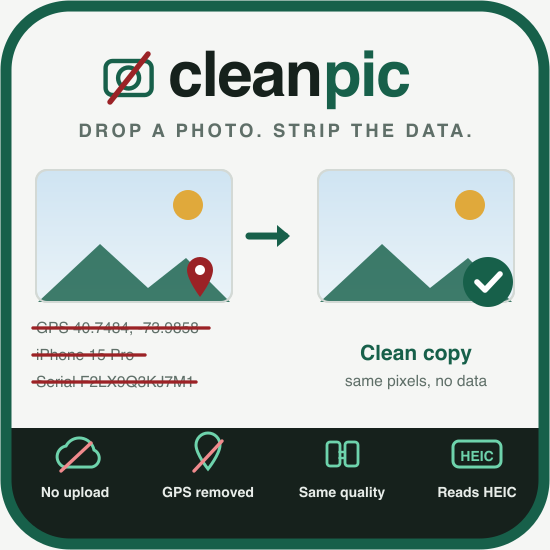
Cleanpic
CleanPic is a tool I built. It is free and simple to use. Drop a photo in and it shows you what is in the file, with the things that matter such as coordinates, serial numbers, names. You can then choose to download a cleaned copy. (Note: the only thing it can not remove is the XMP file).
Since the whole point is privacy, the photo is never uploaded. No server, no account, no third-party script on the page. The file is read by JavaScript on your own machine and the clean copy is handed straight to your downloads folder. Open your network tab and watch it sit idle.